Opportunity Goals Defaults Window
The Opportunity Goals Defaults window is used to define the default appearance of the Opportunity Goals panel. When the Home screen is accessed, the Opportunity Goals panel displays based on the settings defined on this window.

|
To access the Opportunity Goals Defaults window, click the |
 (Configure) icon on the Opportunity Goals panel.
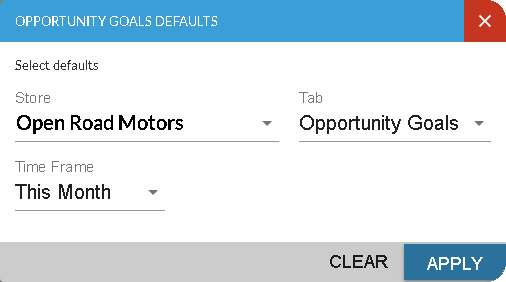
Once settings on this window have been defined, click the APPLY button to save the settings. To clear all changes made since you last saved the information on this window, click the CLEAR button.
The following fields are available on the Opportunities Defaults window.
Store: Select the dealership for which information should display automatically in the Opportunity Goals panel when the Home screen is accessed. Click the  (Down Arrow) icon to display a list of valid entries.
Tab: Select the tab that should display automatically in the Opportunity Goals panel when the Home screen is accessed. Click the (Down Arrow) icon to display a list of valid entries.
Time Frame: Select the time frame, such as This Month or Last Month, for which information should automatically display in the Opportunity Goals panel when the Home screen is accessed. Click the (Down Arrow) icon to display a list of valid entries.
Click here for a list of products that may be mentioned in this help file.